

See It Work. For Real.
Five chapters of real sessions in the English UI, sped up only where the machines are working. The recordings are still being made.
- chapters
- 5
- minutes (planned)
- ≈6
- GPUson 2 machines
- 3
Real capture pending
A real Phasyn Studio screen goes here.
image-studio-takes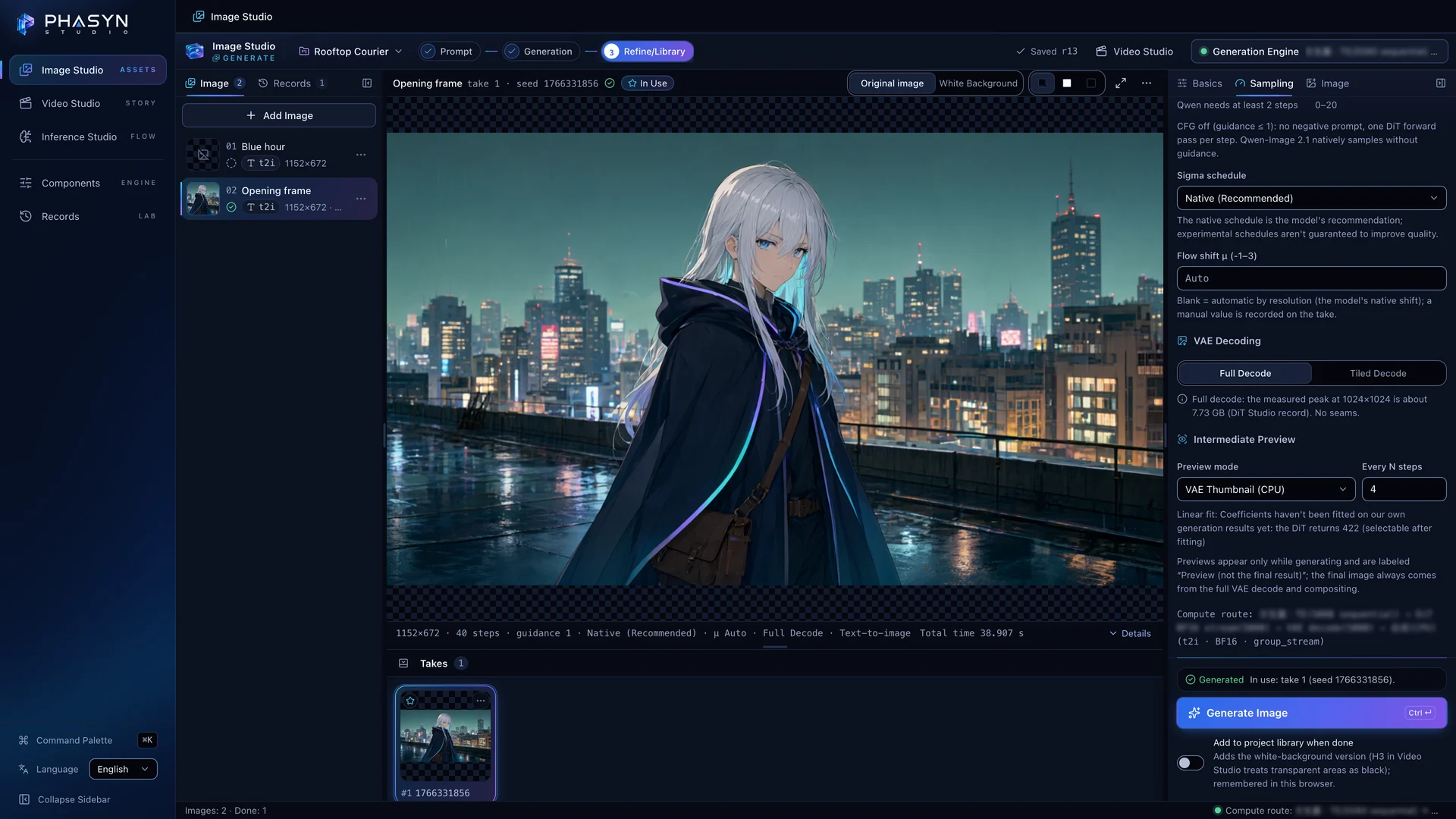
Text to Image to Video
A prompt becomes a Qwen-Image 2.1 still in Image Studio, and the still becomes the first frame of a video shot. One render then runs on three GPUs across two machines, and every stage reports its measured time.
What You’ll See
Write one prompt in Image Studio, then pick an Output size and a seed.
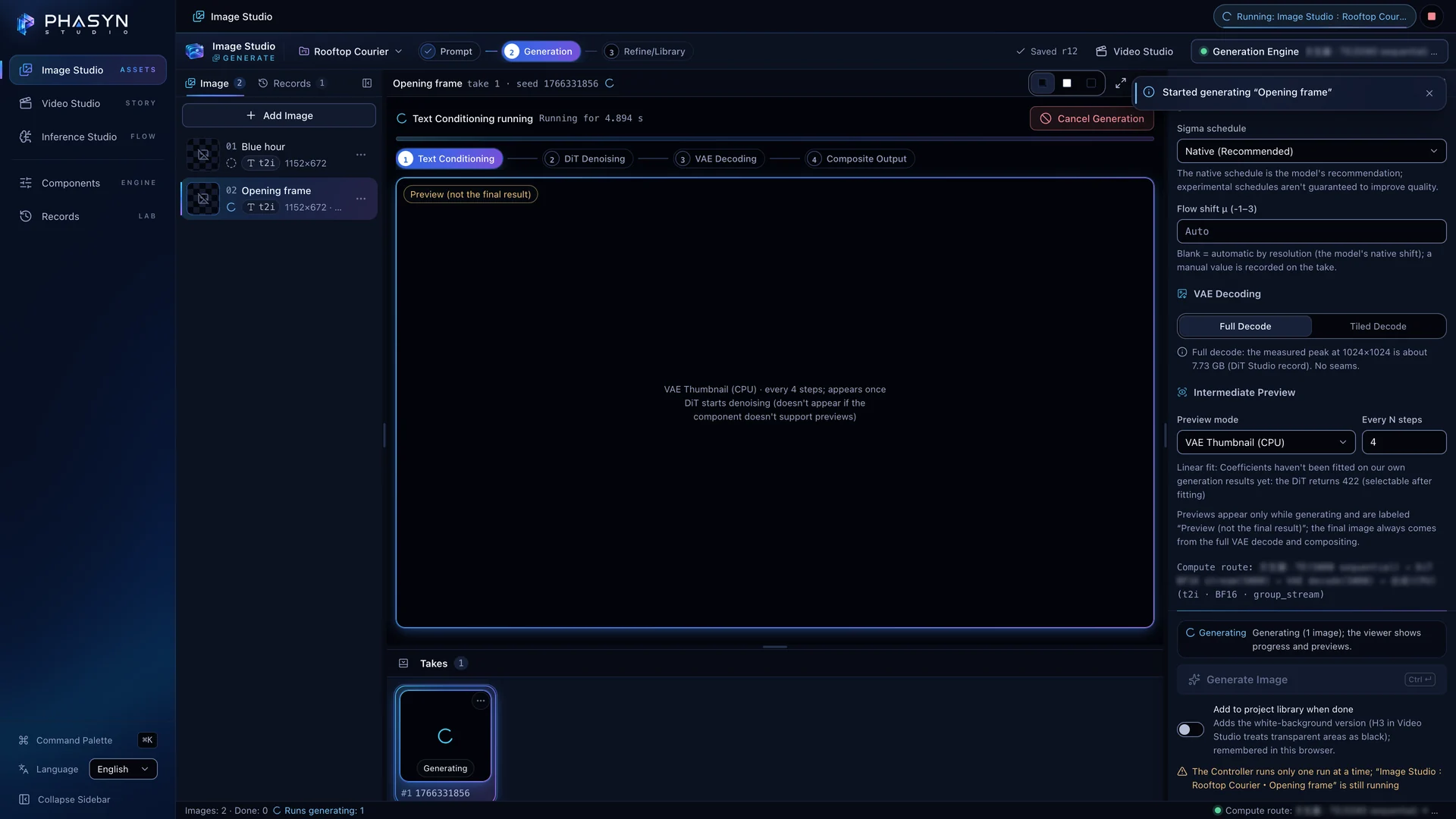
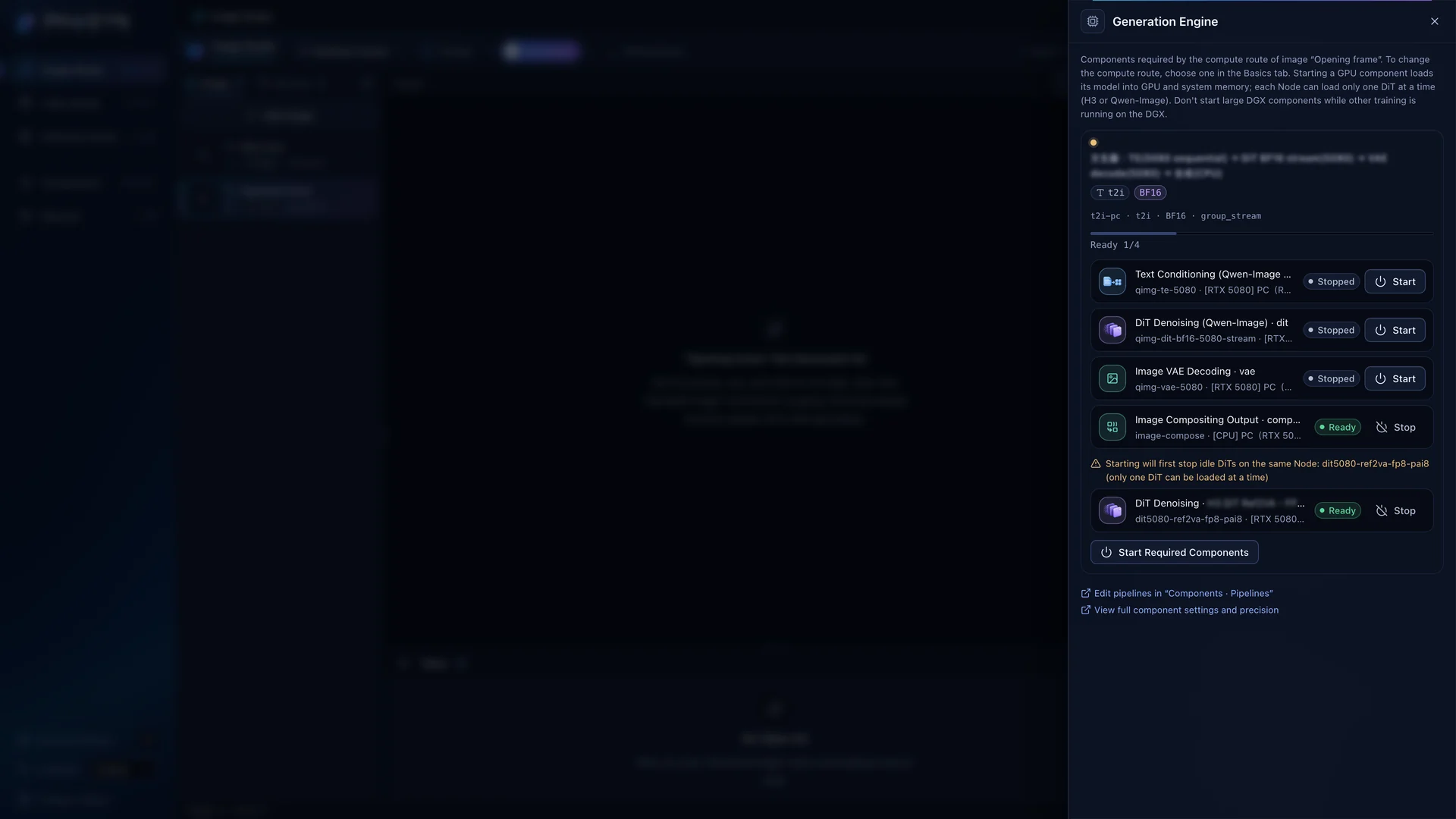
Start Required Components wakes only the models this image needs.
RTX 508011.3sto start the image DiT · 2026-10-18Generate Image: the preview updates while it renders, and the result stays as a take.
RTX 508025.8–26.9sper still, end to end · 4 runs on 2026-10-18Use in Video Shot… → fl2va first frame opens a new shot on the image.
Render Engine: text encoding on the DGX Spark, DiT and video on the RTX 5080, audio on the RTX 3060.
DGX Spark · GB10RTX 5080RTX 3060Stages reports each step’s measured time, and the shot opens on your image.
57–76sper 5.17 s clip with audio · 4 runs on 2026-10-18
Times are measured runs on the machines named; the video may show a different run.
Choosing a library image as the first frame is still marked Not yet verified on GPU in the app.
Real Screens
Image Studio, mid-render with a live preview Generation Engine: the image models on the RTX 5080, one DiT per node - Real screen · contains AI-generated content
Real capture pending
A real Phasyn Studio screen goes here.
image-studio-takesImage Studio: a finished take
References and Prompt Advisor
A character sheet and a music clip become @Image1 and @Audio1, each mapped to an H3 tag. Prompt Advisor checks the prompt with 74 rules as you type and cites a source for every finding.
What You’ll See
Add from Library and Upload File bring in a character sheet and a music clip made with Suno.
Each one gets an @name, and every mention maps to an H3 tag, such as H3: <Picture 1>.
Templates starts the prompt from the official six-section format.
Fixes & Suggestions checks 74 rules as you type; each finding is badged Official, Code or Guide Advice.
Apply Fix… previews the change as a diff; nothing changes until Apply.
Render Shot: the image and music references render into one shot.
DGX Spark · GB10RTX 5080RTX 3060105–108sper clip with one reference image · 2 runs on 2026-10-18
Times are measured runs on the machines named; the video may show a different run.
Prompt Advisor reports what it checks; whether its advice improves the video hasn’t been measured.
Edit, Add Effects, Export
Rendered shots go on a real timeline: split, trim and snap, frame by frame. Add a dissolve, a speed change that keeps the pitch and a title — then FFmpeg exports one MP4.
What You’ll See
Drag clips along the V1 Video track to set the order.
Split at Playhead and the trim handles work frame by frame, with snapping.
In Effects, Cross Dissolve blends one shot into the next.
Speed → 1.5×: the audio changes speed without changing pitch; Text adds a title.
Export Sequence… → Start Export: FFmpeg writes one MP4.
CPU≈ 1stwo plain clips · earlier demo
Times are measured runs on the machines named; the video may show a different run.
Export: MP4 (H.264 + AAC, fully re-encoded; quality presets CRF 18 / 23 / 28).
Image to Prompt
Start from an image and get an editable prompt back: the vision model on DGX Spark fills an eight-section scene, proposes core and detailed prompts, then regenerates and scores each candidate.
What You’ll See
Image to Prompt → New Image-to-Prompt Study starts from an image in the library.
Analyze Source Image runs the vision model on the DGX Spark.
DGX Spark · GB1085.8sto analyze one image · earlier measurementScene & Candidates fills eight sections, from Subject to Visible Text.
Candidate Prompts offers a core and a detailed version, ready to edit.
Generate & Compare regenerates each candidate and scores it with Loss.
Apply to Image Studio sends the best one back to Image Studio.
Times are measured runs on the machines named; the video may show a different run.
Loss is a difference score from a machine judge (0 means every section matches), not an accuracy rate.
Pipelines, Components and Records
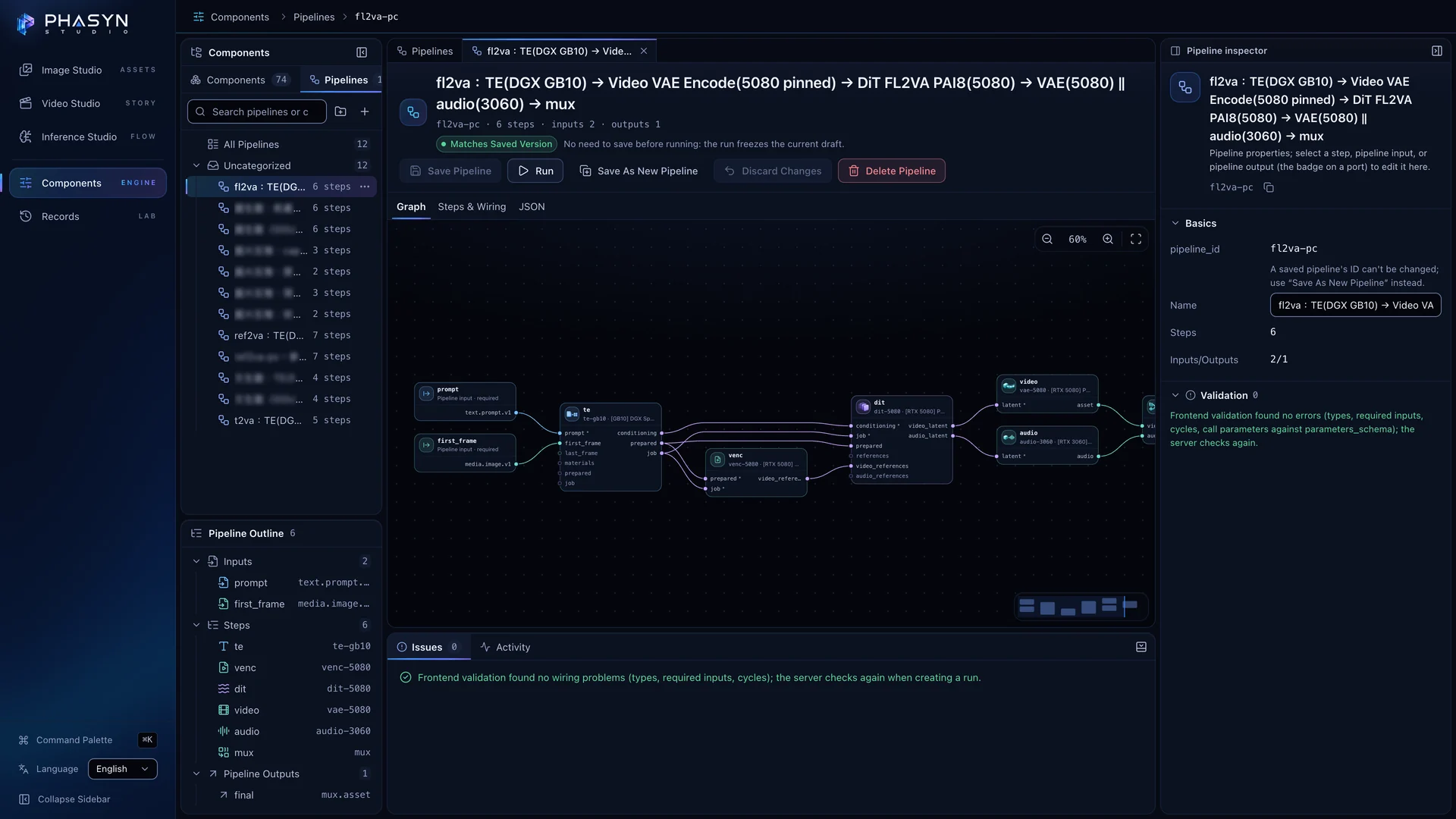
Every render is a pipeline you can open: each node is its own process on the machine you choose, with precision set per component. Afterwards, Records shows where every second went — measured, never guessed.
Video in preparation
It will play here as soon as rendering finishes.
What You’ll See
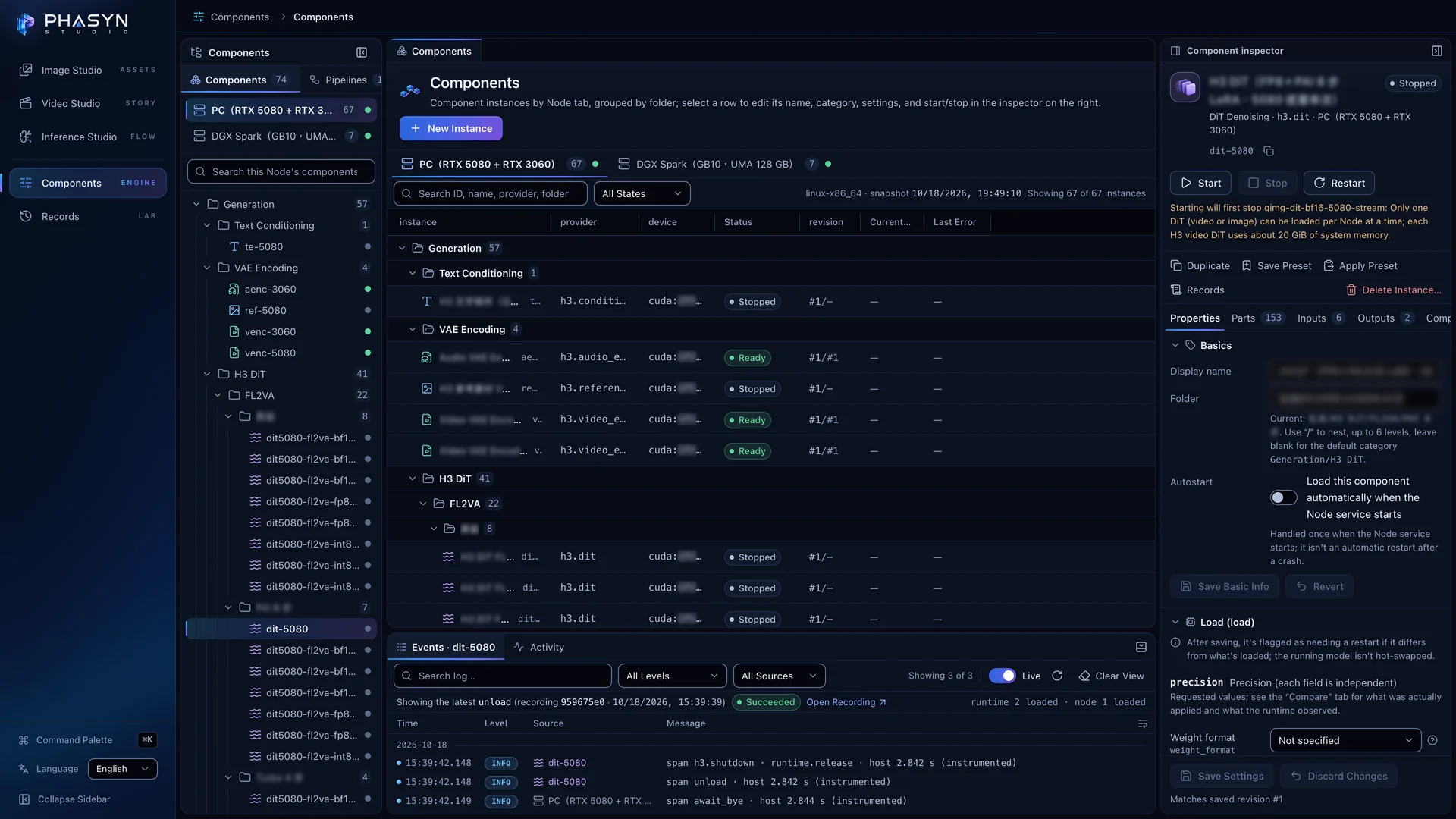
Components → Pipelines → Graph: each node is its own process, on the machine you choose.
Swap the DiT in Component Instance; only compatible engines are offered.
RTX 508040.6–45.9sto start a video DiT · 2026-10-18Set precision per component in Precision (each field is independent), and keep chosen layers in BF16 when quantizing.
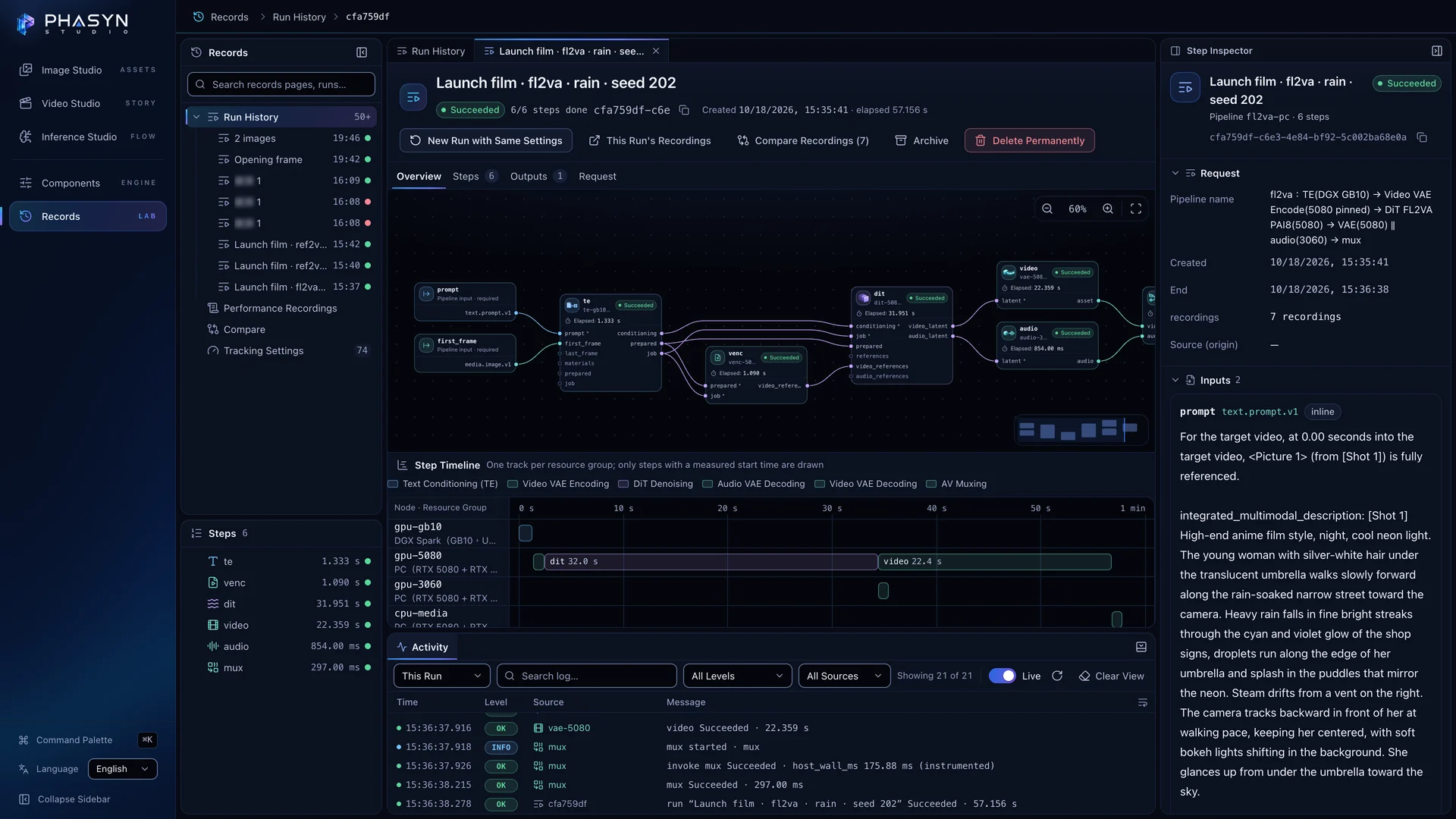
Run History → Step Timeline puts every step on the machine that ran it.
Time Conclusion (Measured Values Only): anything not measured reads Not measured, never zero.
102metrics in the Recorder catalog, each with a unit and a methodCompare up to eight recordings; confounders, such as a different seed, are flagged first.
Times are measured runs on the machines named; the video may show a different run.
Real Screens
The fl2va pipeline as a node graph Settings and precision for dit-5080 The rain clip’s run record: each step and its machine
Or Hand It to an Agent.
The Phasyn Studio skill gives an agent the phasynctl command-line tool and an optional MCP (Model Context Protocol) server with 22 tools. With it, the agent reads live status, compares runs and dry-runs a render before anything is sent.
Script phasynctl runs create, wait and download to submit a batch, wait for it and download the results; Video Studio also has Batch Render. An agent uses the same tools to check, compare and tune.
About These Recordings
- Each chapter is a real session in the English UI; the recordings are still being made. Waits are sped up or cut, and every time names the machine that ran it.
- Image to prompt is shown; video to prompt isn’t, because it hasn’t run on the real model yet.
- One-Click Character Swap is in testing and isn’t part of this tour. Only use material you have the rights to, and never impersonate a real person.
- The white-background copy places the image on white; background removal itself is coming.
Now See the Numbers.
Every speed figure on this site names the machine that ran each step — or says “Placement not recorded” where the archive lacks it.